
Connecting platforms
WizeClip posts from each creator's own profiles. Once the creator has a proxy, the WizeClip Connect app signs in on your computer and sends the session, so WizeClip never sees the password.
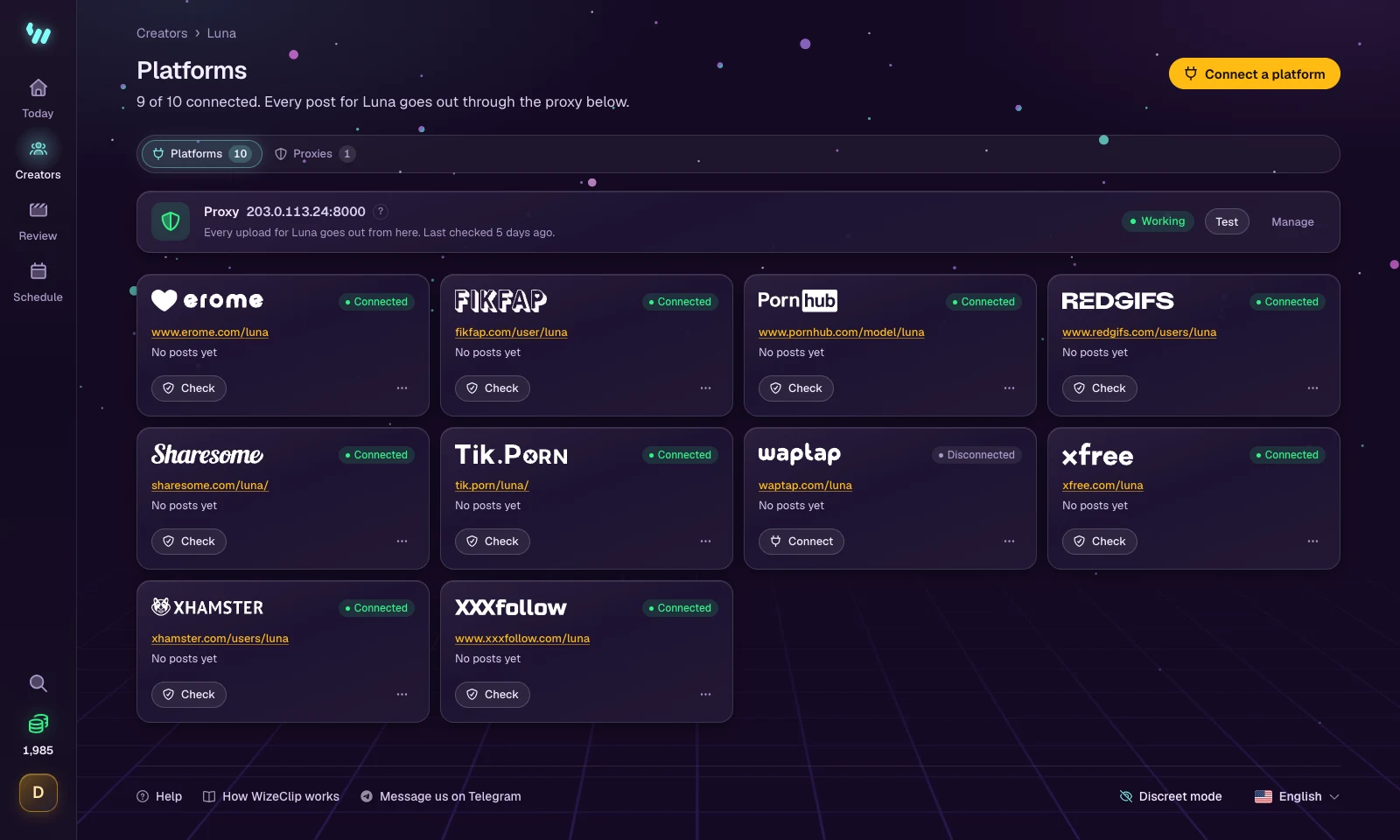
Each platform is connected once, from the creator's Platforms page, and stays connected until its sign-in runs out. Every platform signs the creator in and posts through the creator's proxy, so the proxy comes first: until there is one, the platforms are shown locked. The sign-in itself happens in WizeClip Connect, a free app for Windows and macOS: it opens the platform on your computer, through the creator's proxy, and sends the signed-in session to WizeClip.
Install WizeClip Connect
You install it once, on the computer you sign in from, and it works for every creator on your account, including ones you add later. The download is in Connect a platform and in Settings.
- Download it. Choose macOS. Your browser saves a
.dmgfile in Downloads. - Install it. Open the file and drag WizeClip Connect into Applications.
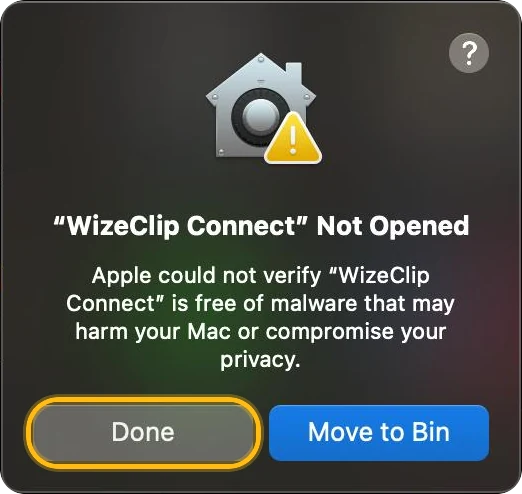
- Open it. Open it from Applications. The first time, macOS says it could not check the app: press Done.
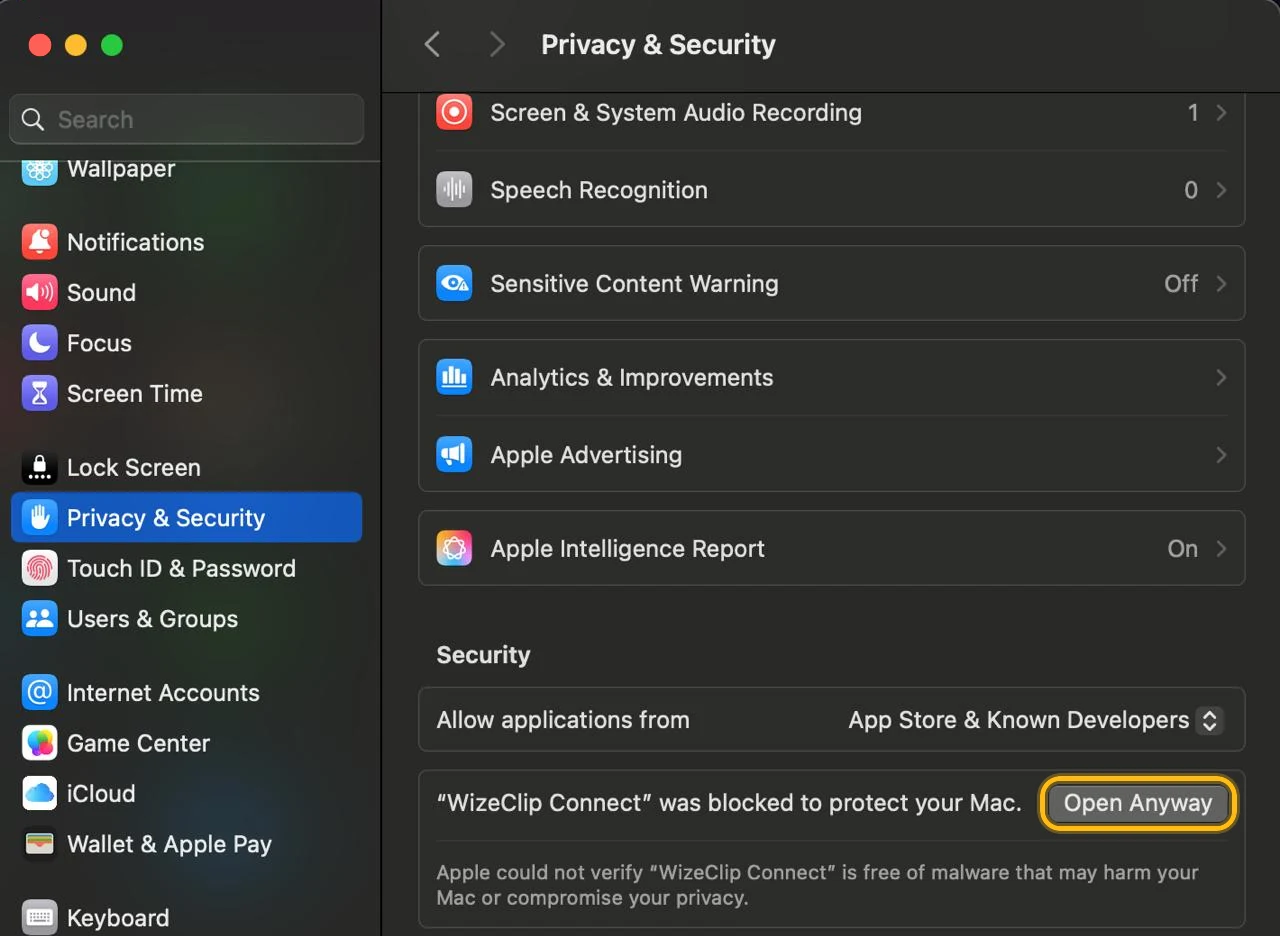
- Allow it. Open System Settings, then Privacy & Security. Scroll down to Security and press Open Anyway beside WizeClip Connect.
- Confirm. Press Open Anyway once more and enter your Mac password.
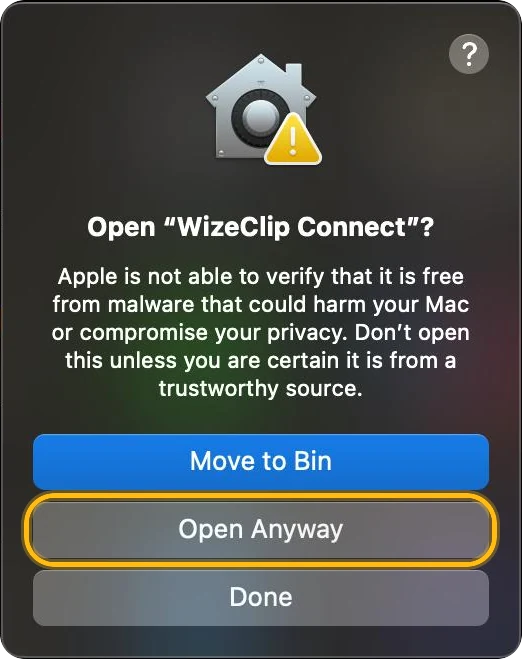
Only the first time: after that, WizeClip Connect opens like any other app.
- Download it. Choose Windows. Your browser saves the installer in Downloads. If the browser asks whether to keep it, keep it.
- Install it. Double-click the installer. If Windows says it protected your PC, choose More info, then Run anyway. It installs in a few seconds, without an administrator password, and opens by itself.
Link this computer
The first time WizeClip Connect opens, it asks to be linked to your WizeClip account. You do this once on each computer.
- Press Link with my browser. WizeClip opens in your browser.
- Press Allow this computer there. Signed out of WizeClip? Sign in, and the page comes back.
There is nothing to copy, and WizeClip Connect never asks for your WizeClip password.
Connect a platform
- Open the creator, then Platforms. With no proxy yet, Connect a platform shows the platforms locked under Add a proxy: add it there, and the platforms open as soon as it works.
- Choose Connect a platform and pick the platform.
- Paste the creator's profile URL on that platform. WizeClip uses it to check that posts landed, and refuses an address from another site.
- Press Open WizeClip Connect. It opens the platform in a window of its own, through the creator's proxy.
- Sign in there the way you normally would. When you see your own profile, press I'm signed in.
- WizeClip checks the sign-in and keeps it. The window closes by itself, and the dialog shows the platform as connected.
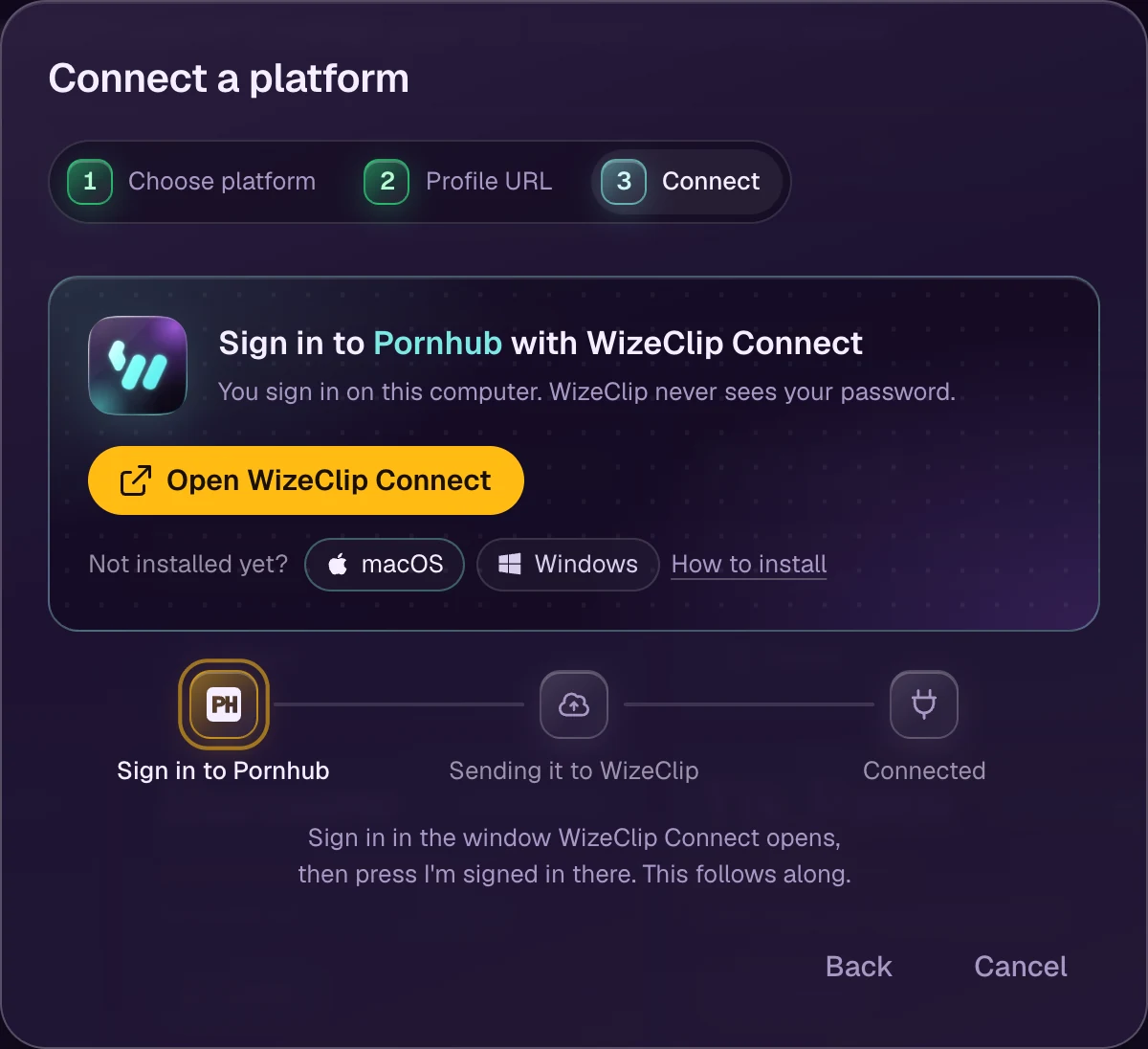
You can also start in WizeClip Connect itself: pick the creator, then Sign in on the platform's card.
If WizeClip Connect does not open
Open WizeClip Connect opens the app on the computer you are using. When nothing answers, the dialog says so after a few seconds and offers the download for that computer.
- Not installed yet: download it and install it, as above.
- Installed: open it once from Applications or the Start menu, link the computer if it asks, then press Open WizeClip Connect again.
- On a phone or a tablet: WizeClip Connect runs on Windows and macOS. Copy link takes the page to your computer.
Platform states
- Connected: WizeClip is signed in there and can post right now.
- Needs reconnect: the sign-in has to be made again. Reconnect on the card runs the same steps.
- Disconnected: the platform is added, but nobody has signed in to it yet.
- Maintenance: posting to that platform is paused for everyone while it has problems. There is nothing for you to do.
Check asks the platform whether the sign-in still works. Nothing is posted.
Updates and linked computers
WizeClip Connect updates itself: a new version downloads in the background, and Restart now at the top of its window starts it. Now and then a version needs a new installer: it then offers Download, and you install it over the old one.
Settings lists every computer linked to your account, with when each was last used. Remove stops one at once, for example a computer you no longer use. If you used the old connect helper, Stop old downloads working in Settings stops every copy of it.