
Posting, scheduling and downloading
Open a clip, tick the platforms and post it now or at a time you pick, or send a whole video with Post all. Every clip can also be downloaded as an MP4, at no credit cost.
Everything about one clip happens in its panel. Open a clip from its video, from To post or from the Schedule.
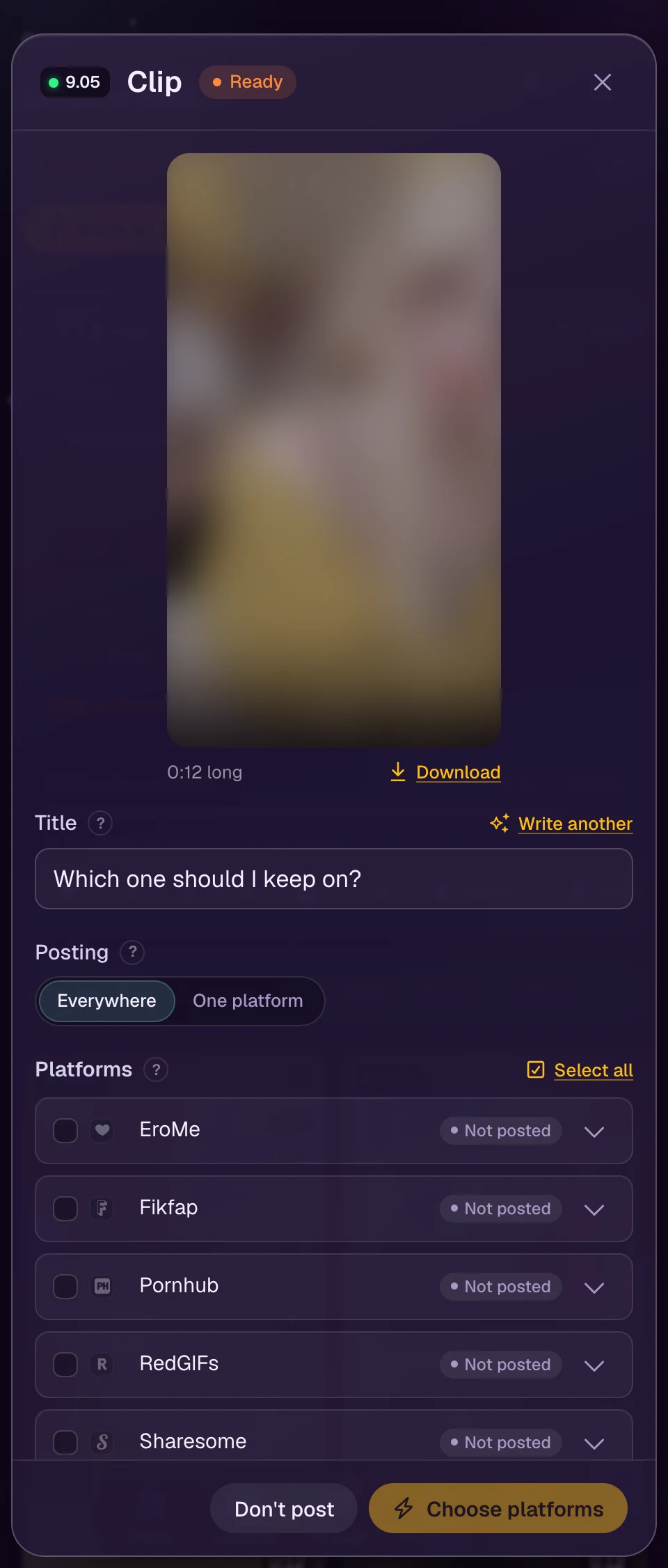
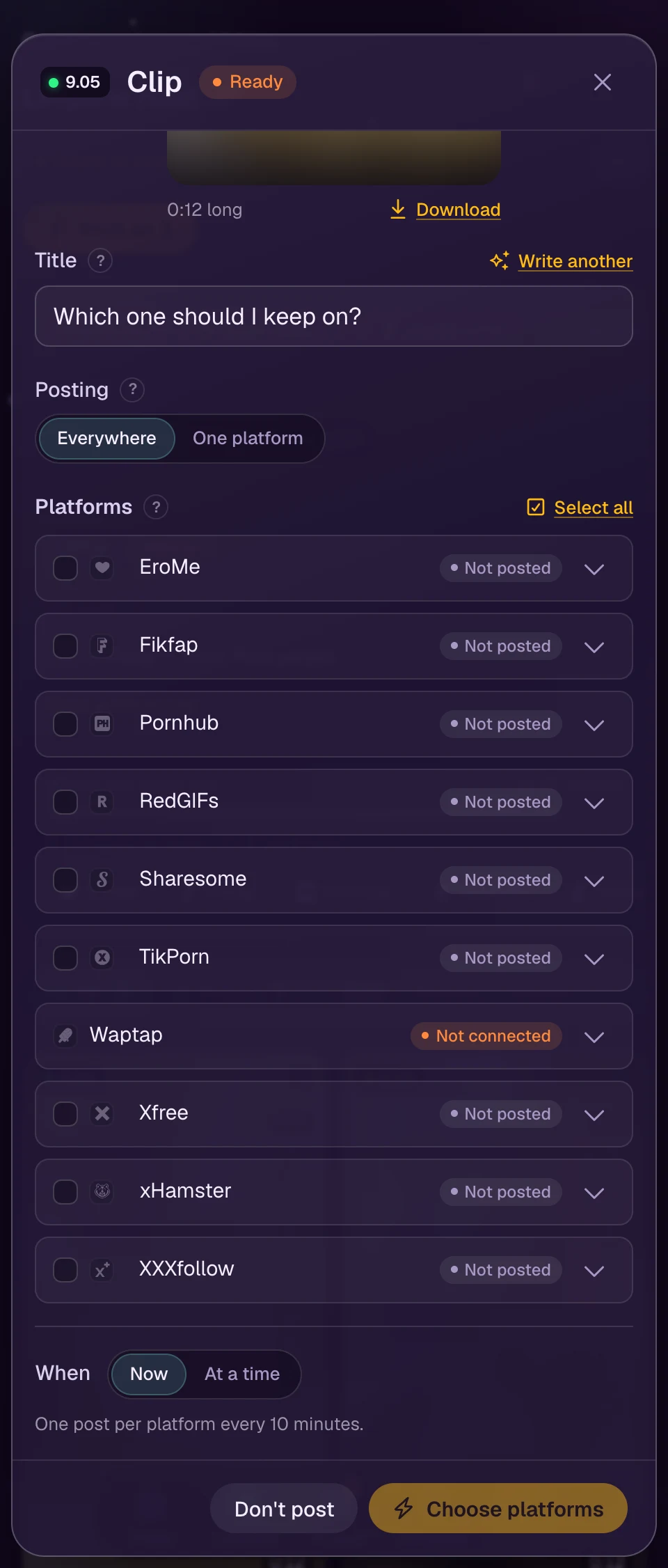
Title and tags
- The title is written by WizeClip in the creator's caption style. Edit it in place.
- Write another asks for a new title and tags for this clip, different from the titles the video already has. It costs the same credits as the first one.
- Tags travel with the clip to every platform that takes them. Remove one with its cross; add one by typing it and pressing Enter.
Post it
- Choose Everywhere or One platform for this clip.
- Tick the platforms, or Select all. A platform that is not connected says so, with a link to connect it.
- Under When, choose Now, or At a time and pick the date and hour.
- Confirm with the button at the foot of the panel.
A clip waiting under To check posts once you open it and choose Looks fine. To send all of a video's clips at once, use Post all on its page. See Clips ready to post.
Posts to the same platform go out at least ten minutes apart, so a feed never sees a burst. If another clip is already on its way to that platform, this one takes the next free minute and the panel tells you when. The same holds for a time you pick.
Each platform then shows its state in the panel: scheduled, posting, published or failed. A published row links to the post. A failed row shows what the platform answered, with Retry.
Download a clip
Download, under the preview, saves the clip as an MP4: the same file WizeClip posts. Use it to post the clip where WizeClip does not post, such as X, Reddit, Fansly or a Telegram channel. Downloading uses no credits. Clips download one at a time, and the title and tags are copied from the panel.
A whole video can also have a preview of its own: a short cut of its best moments, to download. See Make a preview.