
Uploading a video
Drop a video on the creator's page, or bring it from Google Drive or Dropbox. Before it goes up, you choose whether WizeClip cuts it into clips or posts it whole.
Where to upload
On the creator's page, drop the file on the first card, or anywhere on the page. You can also click that card to choose a file, or bring one from Google Drive or Dropbox.
- Files: MP4 or MOV, up to 5 GB.
- Length: up to 90 minutes a video, on every plan. Split a longer recording before you upload it.
Before this goes up
A short dialog asks three things before the upload starts.
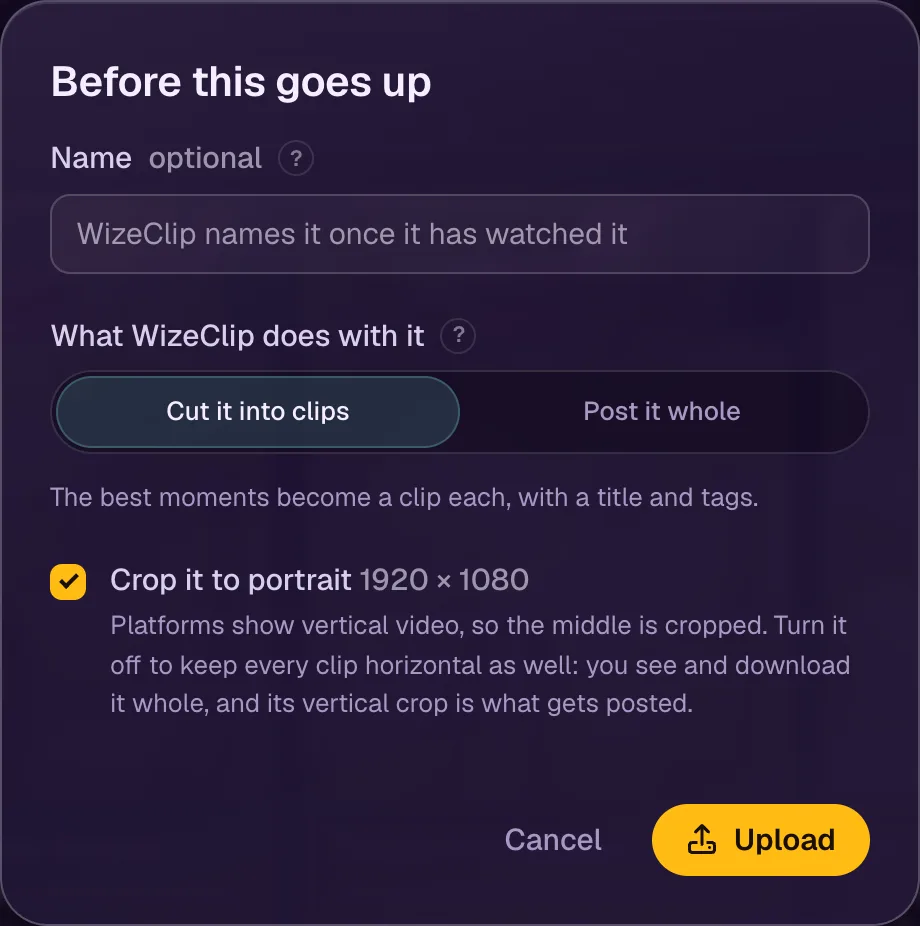
- Name is optional. Leave it empty and WizeClip names the video once it has watched it, from the clips it cuts. A name you type is kept, and you can rename the video later from its page.
- What WizeClip does with it. Cut it into clips finds the strongest moments and makes a vertical clip of each, with a title and tags. Post it whole skips the cutting: the video goes out as it is, with a title and tags.
- Crop it to portrait appears when the video is horizontal. Platforms show vertical video, so the middle of the frame is cropped. Turn it off to keep every clip horizontal as well: the video's page shows its clips whole, each can be downloaded horizontal or vertical, and so can its preview. The platforms still get the vertical crop.
After the upload
The video shows as cutting until its clips are ready, and you can leave the page meanwhile. Videos are cut in turn, so a new upload can wait a little before it starts. Clips appear on the video's page as they are cut, and Today tells you when they are waiting for you.