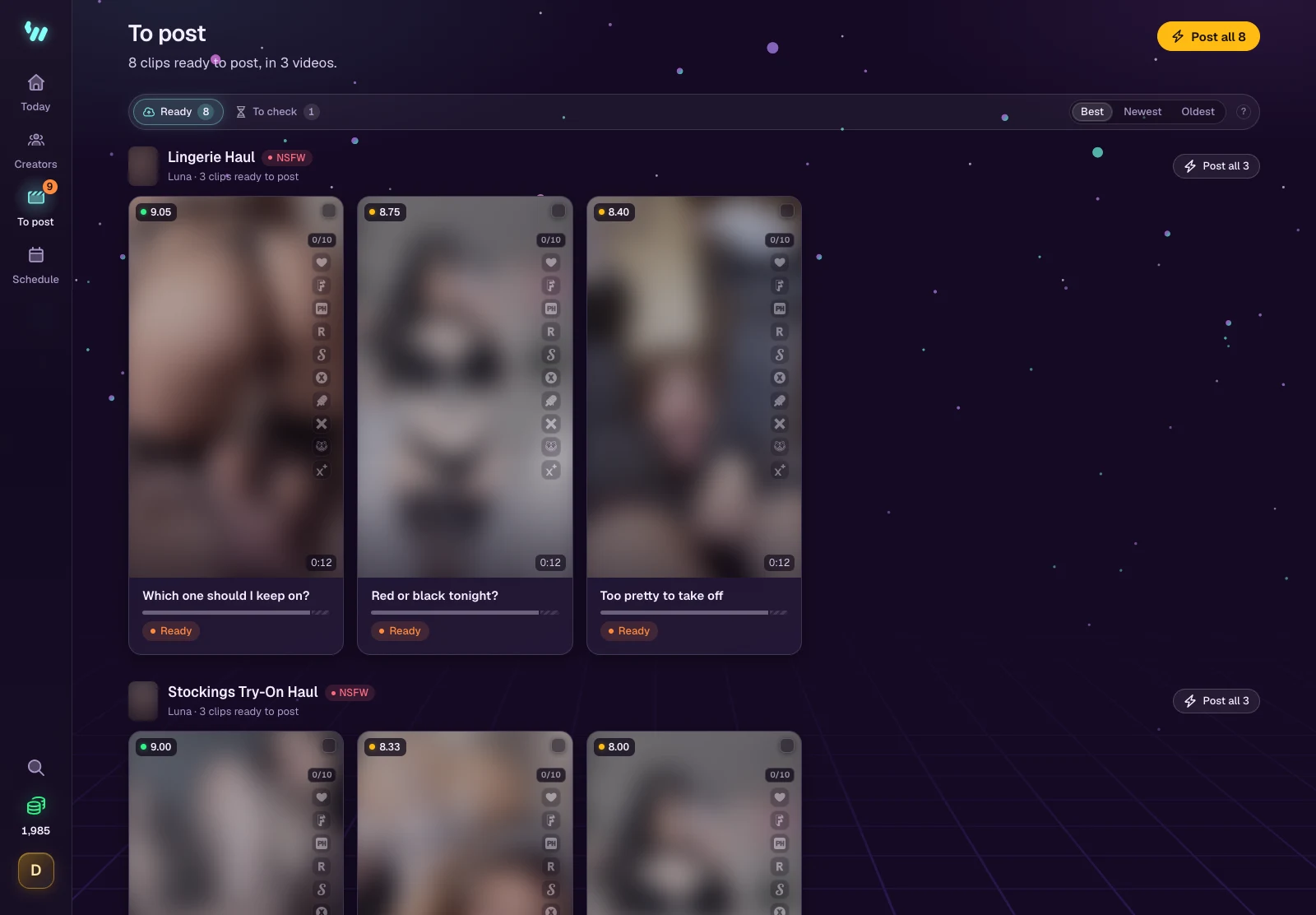
Clips ready to post
Every clip WizeClip cuts is ready to post. Send a whole video's clips with Post all, keep one back with Don't post, and look at the few WizeClip flags.
Every clip is ready to post the moment WizeClip cuts it: there is nothing to approve. You post a video's clips from its page, or every creator's from To post, and you keep back any clip you do not want.
The video page
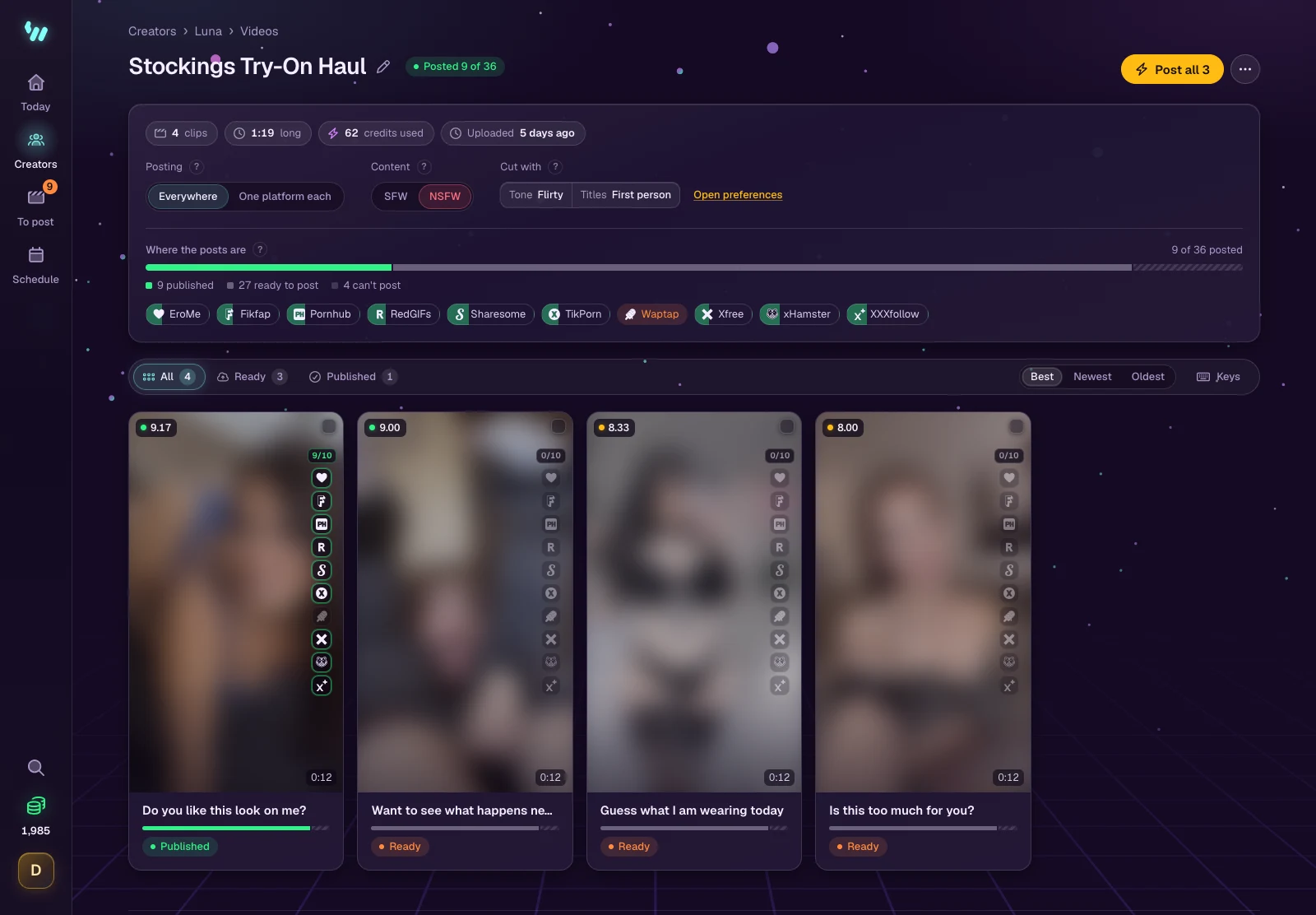
- The score on each clip is how strong WizeClip judged that moment, out of 10. Moments below the creator's minimum are never cut.
- Where this video's clips are is one bar, coloured by state: to check, ready to post, scheduled, posting, published or failed.
- Posting: Everywhere sends every clip to every connected platform. One platform each sends each clip to exactly one platform, so no platform sees the same clip twice. You can also set it per clip.
- Cut with shows the caption settings the video was cut with. Changing Creator preferences affects new videos only.
- Hover a clip to play it; on a phone, tap its play button. With discreet mode on, pictures stay blurred until you hover or tap them.
Post all
Post all, at the top of a video's page, sends every ready clip of the video to every connected platform it can go to, best score first. Each clip goes to all its platforms at once, and the next clip ten minutes later, so no platform gets a burst. Before anything is sent, a window says how many posts go out and when the last one leaves.
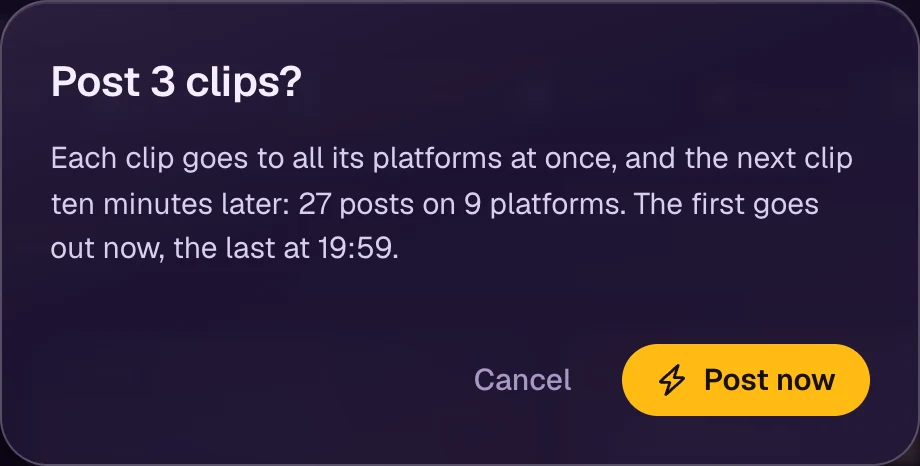
A clip a platform would refuse, such as one shorter than the platform takes, stays back on that platform, and the window says why. To post one clip on its own, or at a time you pick, open it. See Posting, scheduling and downloading.
Make a preview
Preview, at the top of a video's page, makes a short cut of its best moments, 10 to 30 seconds long, to download and use as you like. WizeClip never posts it. To use only some clips, tick them, then choose Make a preview in the bar that appears. Clips kept back or still to check are left out.
In the panel that opens, set the Length, the Sound (On or Off) and what comes Between pieces (Soft or Cut). The Watermark is the creator's, set in Creator preferences. Then choose one of two ways:
- Quick preview, from the moments already found, uses no credits. Press Make it.
- AI edit: the AI picks the pieces and writes a text to send with the video. It uses credits, and the panel shows about how many. Press Let the AI edit it.
The preview is ready in about a minute, and you can leave the page meanwhile. Download video saves it as an MP4 and Download cover saves its cover picture. Downloading uses no credits. When the video's clips are kept horizontal as well, Horizontal video and Vertical video save each shape. After an AI edit, the panel also holds the Text to send with it, with Copy. Make a new one keeps the current preview until the new one is ready.
A video posted whole was never scored: its first preview scores its moments, once, and both ways then show the credits that takes. On the free plan the panel is locked, with Choose a plan, and after a plan has ended, with Renew.
Keep a clip back
- Don't post keeps a clip from ever posting. Put it back undoes it.
- To act on several clips, tick their boxes, or press X on each, then post them, keep them back or delete them together.
Clips to check
A few clips wait for you before they can post, under To check:
- Needs a title: the AI could not give the clip a usable title. Type one, or use Write another, and it is ready.
- To check: WizeClip saw something worth a look, such as another site's watermark, contact details on screen, or something that could suggest a minor. Open the clip, look at it, then choose Looks fine or Don't post. A flagged clip never posts until you do.
To post
To post, in the menu, lists every clip still to post across all your creators, grouped by video, each video with its own Post all. The filters show the clips to check, the failed ones, and those scheduled or posting. A creator who has clips but no platform connected yet gets a note at the top, with the way to connect one.